Create a Team from an Existing Team or Group in Microsoft Teams
Summary
Create a Team from an Existing Team or Group in Microsoft Teams
Body
-
On the left side of the app, Select Chat  . If using the separate view, select Teams
  .
.
-
Select New items from above your list of chats and channels.
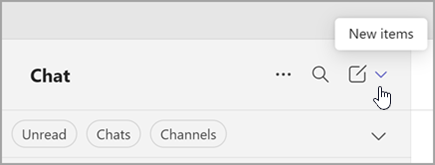
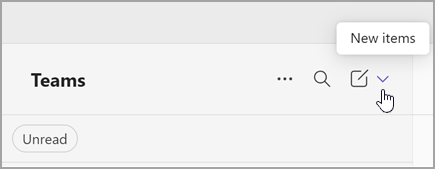
-
Select New team. 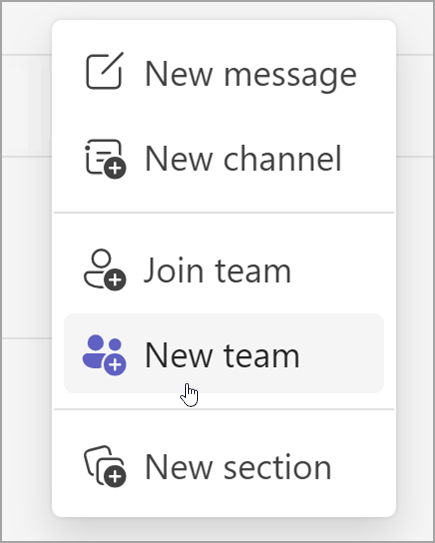
-
Select More create team options. 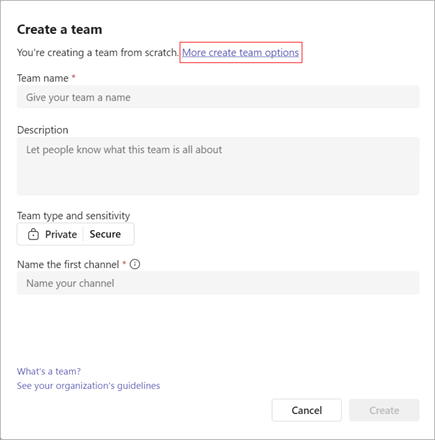
Create a team from an existing team:
-
Choose From another team. You'll see a list of teams that you are currently a member of.
-
Choose the team that you want to copy.
Create a team from a group:
-
Choose From a group and then choose from the available Microsoft 365 Groups. You'll see a list of groups you own, don't have a team connected to them, and have less than 10,000 members.
-
Select a group and a team with the same name will be created automatically. The team will share the same group privacy, sensitivity and members as the original group.
Notes:
-
This option is not available for groups that have more than 10,000 members or that were already used to create another team.
-
Groups associated with Viva Engage communities can't be converted to a team.
Add your team details
-
Name your new team, add a description, edit the team privacy and select its sensitivity if your org has set this up.
Tip: We'll automatically create the first channel for your team. It's called "General," but you can rename it later.
-
Use the checkboxes to choose which parts of the team you want to copy: channels, tabs, settings, apps, and even members.
Note: When creating a team from an existing team you can also choose whether to copy channels, tabs, settings, apps and members. If you didn't choose to copy members from an existing team, don't forget to add members to your team.
-
When you’re done, select Create.
Details
Details
Article ID:
167849
Created
Fri 6/27/25 4:51 PM
Modified
Wed 7/9/25 11:50 AM